Deploy the Lutril MCP Discovery Agent with Your MDM
The Lutril MCP agent is one read-only executable with no runtime and no dependencies. Lutril generates one installer per platform with your token already in it; here is how to push it with Intune, Jamf, Kandji or a terminal, the settings that matter, and how to tell the rollout actually landed.
 ChatGPT
 Claude
 Mistral
 Perplexity
Short answer
To deploy the Lutril MCP discovery agent: open MCP Discovery, click Deploy the agent, create an enrollment token and download the installer for each platform you manage, which already contains your tenant, the token and the digest of the agent binary. Push each file with your MDM as a script that runs once per device as root or SYSTEM, assigned to a device group; on macOS assign the Full Disk Access profile alongside it. The script fetches the binary from your Lutril instance, verifies its SHA-256, and registers the agent as a system service. Each machine enrols on its first run and reports hourly.
What you are deploying
The Lutril MCP agent is a single read-only executable, around 7 MB, with no runtime and no dependencies. It reads the configuration files of the AI clients installed on a machine (Claude Desktop, Claude Code, Cursor, VS Code, Codex, Continue and a dozen others), works out what each MCP server would be able to reach, and reports that to Lutril. It changes nothing on the device.
Running it as a service account rather than as a signed-in user is what makes it useful: one install covers every account on the machine, including the ones nobody is signed into, which is where forgotten MCP servers tend to live. On macOS and Linux that account is root; on Windows it is SYSTEM.
- Server name, which client configures it, and whether it is enabled or running
- The command and the shape of its arguments
- The names of the environment variables and HTTP headers it uses
- The package it pulls in, and whether that version is pinned
- The origin (scheme and host) of a remote server
- Hostname, OS version, the local account names, and the address of the work-tool account signed in on the device where there is one
- The value of any environment variable or HTTP header
- The contents of any file
- Any absolute path containing a username
- The path or query string of any URL
- The command line of any running process
- Anything an MCP server itself has access to
You do not have to take that on trust. Run lutril-mcp-agent --dry-run on one machine: it prints the exact payload it would send, needs no token and no network, and is the recommended first step of any evaluation.
Before you start
- A way to run a script as root or SYSTEM on your fleet. Any MDM does this; so does a terminal with
sudo. - Nothing else. The binary is fetched by the script from your Lutril instance, and the script refuses to install anything whose digest does not match.
Step 1. Create the token and download the installers
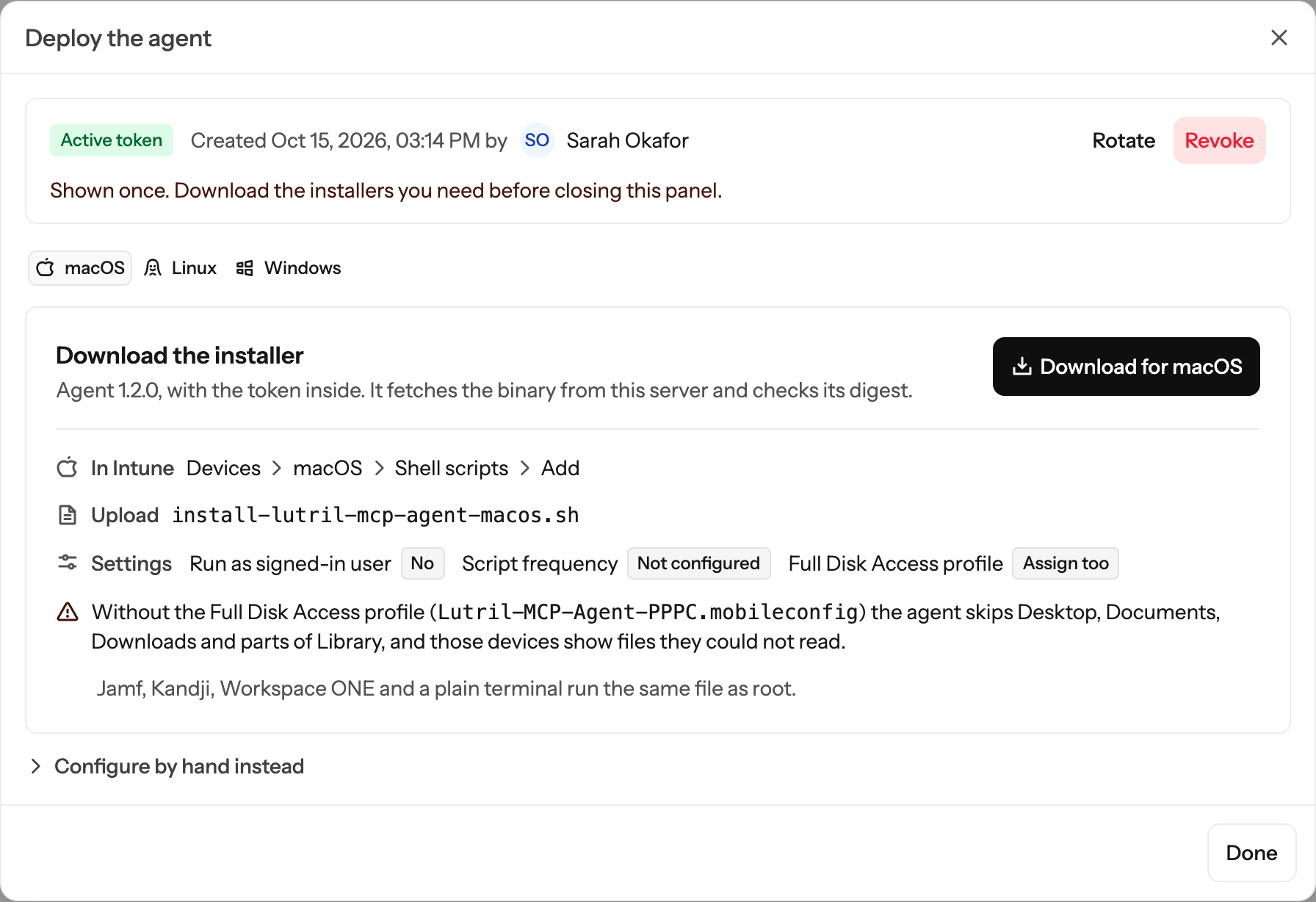
In Lutril, open MCP Discovery, click Deploy the agent, and then Create token. With the token on screen, pick a platform and click Download. Each file carries your API address, your tenant, the token, the versioned URL of the binary and its digest. There is nothing to edit. Download one file per platform you manage.
Step 2. Push it with your MDM
Upload each file as a script that runs once per device, as root or SYSTEM, assigned to a device group rather than a user group: the agent is one install per machine, covering every account on it. The settings that matter are the same whatever the MDM.
| Platform | File | Run as | Also |
|---|---|---|---|
| macOS | install-lutril-mcp-agent-macos.sh | root, not the signed-in user | Assign the Full Disk Access profile Lutril-MCP-Agent-PPPC.mobileconfig alongside it |
| Linux | install-lutril-mcp-agent-linux.sh | root | Nothing |
| Windows | Install-LutrilMcpAgent.ps1 | SYSTEM, not the logged-on user | No signature check, 64-bit host |
Where that lives in a few common consoles:
- Intune. Devices → macOS → Shell scripts, Devices → Linux → Scripts, and Devices → Scripts and remediations → Platform scripts for Windows. Frequency not configured, so it runs once.
- Jamf. A policy with the script as its payload, scoped to the computer group, executed once per computer. The mobileconfig goes in as a configuration profile with the same scope.
- Kandji. A custom script library item set to run once, plus a custom profile for the mobileconfig.
- A terminal.
sudo sh install-lutril-mcp-agent-macos.shon a Mac, the same for Linux, and the PowerShell file from an elevated prompt on Windows. Useful for the first machine of an evaluation.
Step 3. Confirm the rollout
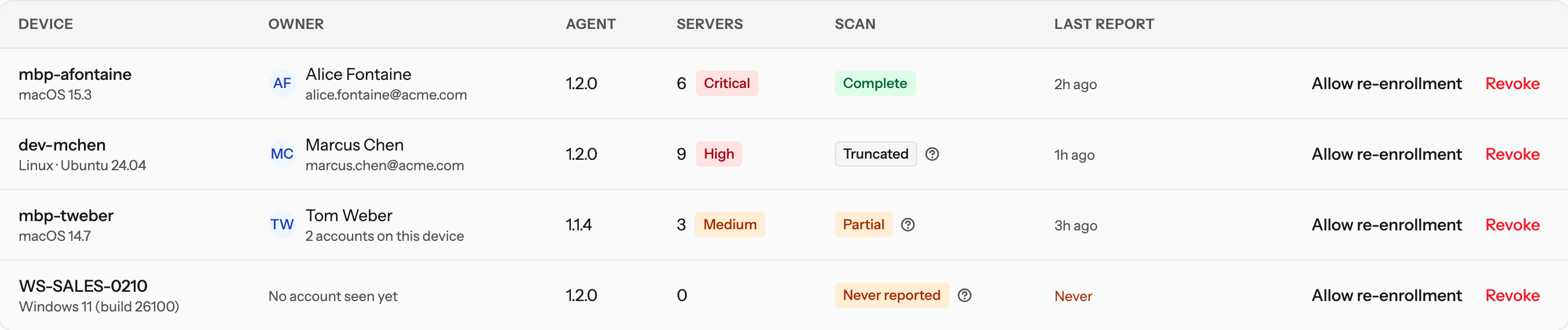
Each machine enrols on its first run and reports hourly after that, with a jitter so a fleet does not report in lockstep. Expect the first devices within a few minutes of the script running, and open MCP Discovery → Devices to watch them arrive.
If something does not land
| Symptom | Cause |
|---|---|
| Script succeeds, no device appears | The token was rotated after the file was downloaded. Rotate again in Lutril, download a fresh installer, and replace the script in your MDM. |
| Script fails with Checksum mismatch | The binary on your Lutril instance is not the one the installer was generated for, usually because a new agent release was published in between. Download the installer again. |
| Script fails with No agent binary for architecture | The release on your instance ships no build for that machine. Publish one, or exclude that device. |
| Device reports once, then stops | It was revoked in Lutril. The agent re-enrols once on a rejection and then stops rather than looping; restore it under Devices. |
| Device shows Never reported | The agent is installed and has not run yet. Check the log: /var/log/lutril-mcp-agent.log on macOS, journalctl -u lutril-mcp-agent on Linux, the task history of Lutril MCP Discovery Agent in Task Scheduler on Windows. |
| Partial on the device row | A home directory the service account cannot traverse, or security software blocking the read. The tooltip gives the count. On macOS this is almost always the Full Disk Access profile missing. |
Removing it
Push a second script to the same device group, or run it by hand:
# macOS
sudo launchctl bootout system /Library/LaunchDaemons/com.lutril.mcpagent.plist
sudo rm -rf /Library/LaunchDaemons/com.lutril.mcpagent.plist "/Library/Application Support/Lutril"

# Linux
sudo systemctl disable --now lutril-mcp-agent
sudo rm -rf /etc/systemd/system/lutril-mcp-agent.service /etc/lutril /var/lib/lutril-mcp-agent

# Windows (elevated PowerShell)
Unregister-ScheduledTask -TaskName 'Lutril MCP Discovery Agent' -Confirm:$false
Remove-Item -Recurse -Force "$env:ProgramFiles\Lutril", "$env:ProgramData\Lutril"
That stops the machine sending. It does not revoke its credential, which is a separate decision and a deliberate one: revoke the device under MCP Discovery → Devices if you want its access withdrawn as well as its agent removed.
Questions that follow
Does the agent need admin rights?
It installs and runs as root on macOS and Linux and as SYSTEM on Windows, which is what any MDM provides for a script. That is what lets one install cover every account on the machine rather than only the person who happens to be signed in.
What does the agent send to Lutril?
The shape of each MCP server configuration: its name, the client that configures it, the command and the shape of its arguments, the names of the environment variables and headers it uses, the package it pulls in and whether that version is pinned, the origin of a remote server, and the address of the work-tool account signed in on the device. Lutril keeps that address only when it matches your directory, so there is no domain to configure. It never sends the value of a credential, the contents of a file, a path containing a username, or the command line of a running process. Run lutril-mcp-agent --dry-run to see the exact payload before deploying anything.
Why a script rather than a package?
A signed .pkg, a .deb or a .intunewin package each need a build step, a signature and a detection rule. A script is one file uploaded once per platform that runs as root or SYSTEM, which is all the agent needs: it fetches the binary from your Lutril instance, checks its digest, and registers a LaunchDaemon, a systemd unit or a scheduled task. The same file also runs from a terminal for the first machine of an evaluation.
Is the enrollment token safe to put in a script?
It is a fleet secret rather than a device secret: the same string goes to every machine, and anyone who can read the script in your MDM can see it. It proves a device belongs to your organisation and nothing more. It cannot read anything out of Lutril and cannot take over a device that is already enrolled, and rotating it is one click, after which every deployed agent re-enrols on its next run and a script built from the old token enrols nothing.
How do I uninstall the agent?
Push a second script, or run it by hand: unload the LaunchDaemon and remove the Lutril folder on macOS, disable the systemd unit and remove the Lutril directories on Linux, unregister the Lutril MCP Discovery Agent scheduled task and remove the Lutril folders on Windows. That stops the machine sending but does not revoke its credential, which is a separate action under MCP Discovery, Devices.
In thirty minutes we map Lutril to your stack and show what real-time access governance looks like for your team. No slides.
Book a Demo